How to Set Up IPTV on TiviMate: The Complete Step-by-Step Guide
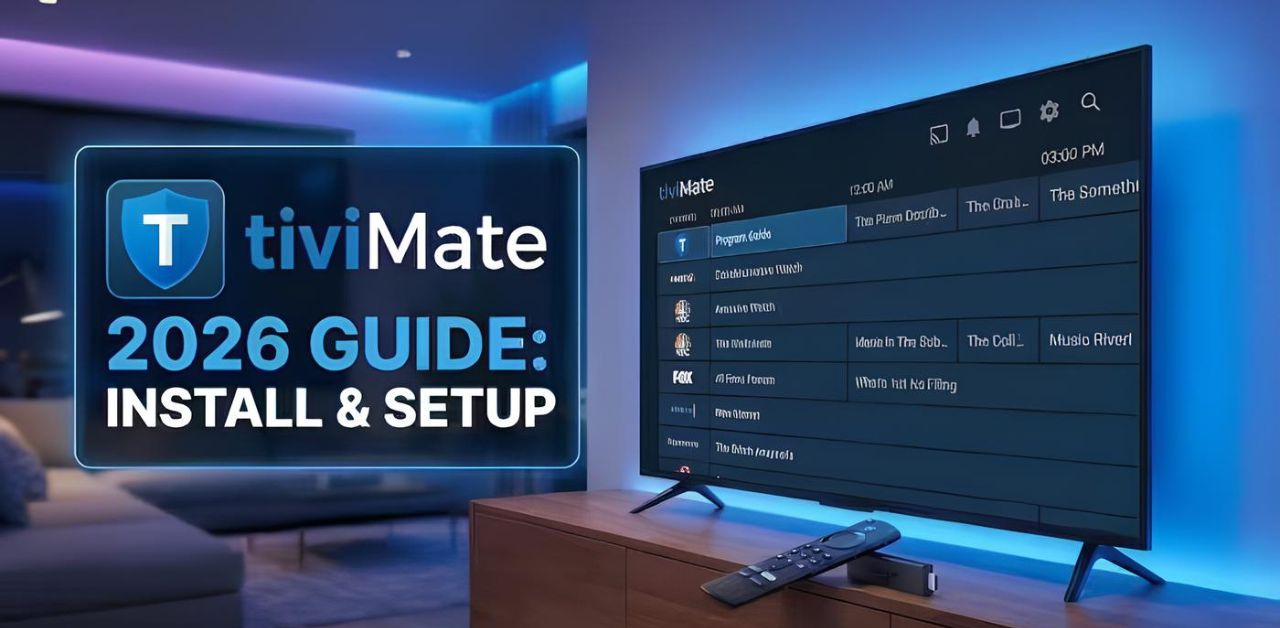
If you’re looking for one of the easiest ways to enjoy IPTV on your Android TV, Fire TV, or Android TV box, TiviMate is one of the most user-friendly IPTV players available. With its clean interface, powerful features, and excellent playback experience, it has become a popular choice for IPTV users.
This guide explains exactly how to set up IPTV on TiviMate using your IPTVUK.my subscription. Whether you’re installing it for the first time or configuring a new playlist, this tutorial walks you through every step.
What Is TiviMate?
TiviMate is an IPTV player designed specifically for Android TV devices. Instead of providing TV channels itself, it allows users to load IPTV playlists from their IPTV service provider.
Once your IPTV playlist is added, TiviMate organizes your channels into categories, displays TV guides (EPG), supports favorites, recordings (where supported), and offers a modern TV viewing experience.
Why Choose TiviMate?
Some of the main benefits include:
- Easy-to-use interface
- Fast channel switching
- Electronic Program Guide (EPG) support
- Favorite channel lists
- Multiple playlist support
- Catch-up compatibility (if supported by your IPTV subscription)
- Customizable TV guide
- Modern remote-friendly navigation
- High-quality video playback
Its clean layout makes it suitable for both beginners and experienced IPTV users.
What You Need Before You Begin
Before setting up TiviMate, make sure you have:
- A compatible Android TV device
- A stable internet connection
- TiviMate installed
- Your IPTV subscription from iptvuk.my
- Your playlist URL or Xtream Codes login details
- EPG URL (if provided)
Having this information ready makes the setup process much faster.
Devices That Support TiviMate
TiviMate works on many Android-based streaming devices, including:
- Android TV
- Google TV
- NVIDIA Shield TV
- Chromecast with Google TV
- Android TV Boxes
- Fire TV devices (using sideload installation)
Because it is optimized for TV remotes, navigation is smooth and intuitive.
How to Install TiviMate
Installing TiviMate is straightforward.
Step 1
Open the Google Play Store on your Android TV device.
Step 2
Search for:
TiviMate IPTV Player
Step 3
Select Install.
Step 4
Wait for installation to complete.
Step 5
Open the application.
If your device does not include Google Play, install TiviMate using the appropriate APK installation method supported by your device.
How to Set Up IPTV on TiviMate Using iptvuk.my
Once TiviMate opens for the first time, you’ll be asked to add a playlist.
Follow these simple steps.
Open Add Playlist
Launch TiviMate.
Select:
Add Playlist
Choose Playlist Type
You’ll normally have two options:
- M3U Playlist
- Xtream Codes Login
If iptvuk.my has provided Xtream Codes credentials, choose that option.
If you received an M3U URL, choose M3U Playlist.
Enter Your IPTV Details
If using M3U:
Enter the Playlist URL exactly as provided by iptvuk.my.
If using Xtream Codes:
Enter:
- Server URL
- Username
- Password
Double-check for typing mistakes before continuing.
Wait for Playlist Processing
TiviMate will begin downloading:
- Live TV channels
- Categories
- Logos
- Channel information
This usually takes only a few moments, depending on the size of the playlist and your internet connection.
Add the TV Guide (EPG)
If an EPG URL is provided by iptvuk.my, enter it when prompted.
The Electronic Program Guide allows you to:
- View current programs
- Browse upcoming shows
- See channel schedules
- Navigate channels more easily.
Once downloaded, the guide populates automatically.
Finish Setup
After the playlist has loaded, you’ll see all available categories.
Examples include:
- Sports
- Movies
- Entertainment
- News
- Kids
- Documentaries
- International Channels
You can now begin watching.
Organizing Your Channels
TiviMate allows you to customize your viewing experience.
You can:
- Create Favorites
- Hide unwanted categories
- Reorder channels
- Customize channel groups
- Change TV guide appearance.
These features make navigation much easier.
Customizing TiviMate Settings
For the best experience, explore the settings menu.
Useful options include:
Appearance
Change themes, colors, fonts, and layout.
Playback
Adjust video buffering and playback preferences.
TV Guide
Customize guide size and update frequency.
Remote Controls
Assign shortcuts for faster navigation.
Channel Logos
Enable automatic logo updates.
How to Refresh Your Playlist
If channels change or new content becomes available, refreshing your playlist is easy.
Go to:
Settings
↓
Playlists
↓
Select Playlist
↓
Refresh Playlist
TiviMate will update the latest channel information.
Common Setup Problems and Solutions
Although setup is usually simple, here are some common issues.
Playlist Won’t Load
Check:
- Internet connection
- Playlist URL
- Username
- Password
Even a small typing error can prevent login.
Channels Buffer Frequently
Possible causes include:
- Slow internet speed
- Wi-Fi interference
- Temporary network congestion
Using a stable high-speed connection can improve playback.
TV Guide Missing
Verify:
- EPG URL
- Internet connection
Refresh the guide if necessary.
Login Failed
Double-check your credentials supplied by iptvuk.my.
Incorrect capitalization or extra spaces may cause login errors.
Tips for the Best IPTV Experience
To get the most from TiviMate:
- Use a reliable internet connection.
- Keep TiviMate updated.
- Refresh playlists regularly.
- Update your EPG periodically.
- Organize favorite channels.
- Restart your streaming device occasionally.
These simple habits can improve overall performance.
Why Use iptvuk.my?
Choosing the right
IPTV UK provider plays an important role in your streaming experience.
iptvuk.my offers IPTV access that is designed to work smoothly with compatible IPTV players such as TiviMate. After receiving your playlist or Xtream Codes details, setup takes only a few minutes.
Using the configuration details provided by iptvuk.my, you can quickly organize your channels and enjoy a streamlined viewing experience through TiviMate’s modern interface.
Frequently Asked Questions
Is TiviMate an IPTV service?
No. TiviMate is an IPTV player. It does not include channels or subscriptions. You need IPTV login details from a provider such as iptvuk.my.
Can I use TiviMate on Fire TV?
Yes. TiviMate can be installed on compatible Fire TV devices using the appropriate installation method.
Does TiviMate support M3U playlists?
Yes. It supports both M3U playlists and Xtream Codes login.
Can I update my IPTV playlist later?
Yes. TiviMate allows you to refresh playlists whenever updates become available.
Does TiviMate support an Electronic Program Guide?
Yes. You can add an EPG URL to display program schedules and channel information.
Is TiviMate easy for beginners?
Yes. Its straightforward interface and simple setup process make it suitable for users of all experience levels.
Conclusion
Setting up IPTV on TiviMate is straightforward and takes only a few minutes once you have the correct playlist information. Once configured, TiviMate provides an organized and intuitive interface for browsing live TV channels, viewing program schedules, and managing your favorite content.
By using your subscription details from iptvuk.my, you can quickly connect your IPTV service and start enjoying a seamless viewing experience. Whether you’re new to IPTV or an experienced user, TiviMate offers the flexibility and features needed for convenient day-to-day streaming.
