How to Update IPTV App on Samsung TV in the UK
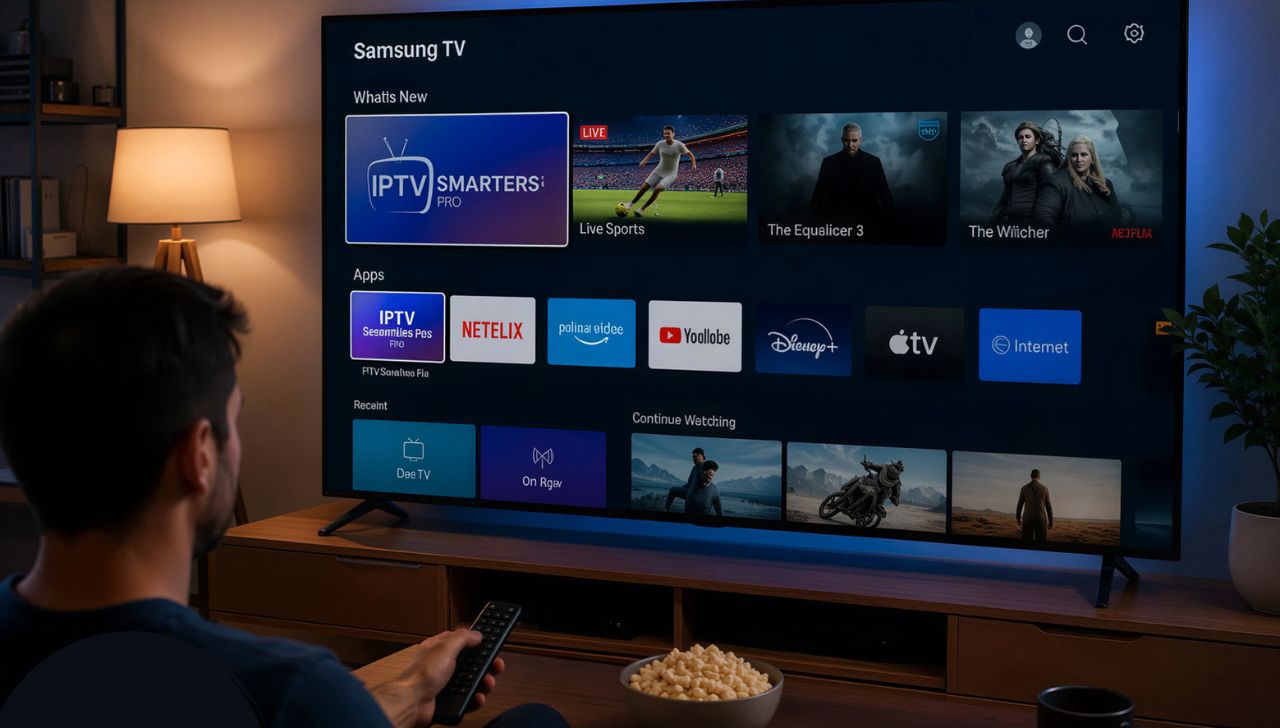
Keeping your IPTV app updated is one of the simplest ways to ensure smooth streaming, improved security, and access to the latest features. Whether you use your Samsung Smart TV every day or only occasionally, installing the newest version of your IPTV application helps prevent playback issues, improves compatibility, and delivers a better viewing experience.
Many Samsung TV owners in the UK are unsure whether their IPTV app updates automatically or requires manual installation. The good news is that Samsung Smart TVs offer both options, making it easy to stay up to date.
This guide explains exactly how to update an IPTV app on a Samsung TV in the UK, troubleshoot update problems, and keep your streaming experience running smoothly.
Why Updating Your IPTV App Matters
Regular app updates provide much more than new features. They are designed to improve overall performance and fix existing problems.
Benefits of updating your
IPTV UK app include:
- Better streaming stability
- Faster app performance
- Improved compatibility with Samsung Smart TVs
- Security enhancements
- Bug fixes
- Better playlist management
- Support for new streaming technologies
- Improved user interface
Using an outdated version may result in buffering, crashes, login issues, missing channels, or compatibility problems after Samsung releases a TV software update.
Check Your Samsung TV Model
Before updating your IPTV application, verify that your television supports the latest version of the app.
To check your TV model:
- Press the Home button.
- Open Settings.
- Select Support.
- Choose About This TV.
- Note the model number and software version.
Newer Samsung Smart TVs generally receive updates more frequently than older models.
If your television is several years old, some apps may eventually stop receiving updates because developers no longer support older operating systems.
How to Update an IPTV App Automatically
Samsung Smart TVs can install app updates automatically when connected to the internet.
Enable Automatic Updates
- Press the Home button.
- Open Apps.
- Select Settings.
- Turn on Auto Update.
Once enabled, compatible apps are updated whenever a new version becomes available.
Advantages of automatic updates include:
- No manual work
- Faster access to new features
- Improved security
- Reduced compatibility issues
- Fewer streaming interruptions
Keeping Auto Update enabled is recommended for most users.
How to Update an IPTV App Manually
If automatic updates are disabled or an update has not yet installed, you can manually check for updates.
Step 1: Open Apps
Press the Home button and navigate to Apps.
Step 2: Locate Your IPTV App
Scroll through the installed applications and highlight your IPTV app.
Step 3: Open the Options Menu
Depending on your TV model, press and hold the Select button or open the app options.
Step 4: Check for Updates
If an update is available, an Update option will appear.
Select Update, then wait until the installation finishes.
Step 5: Restart the Application
Close the app completely and launch it again after the update has finished.
Update Your Samsung TV Software
Sometimes the IPTV application cannot update because the television itself requires a software update.
Updating the TV firmware improves:
- App compatibility
- Performance
- Security
- System stability
- Network connectivity
Update TV Software
- Press Home.
- Open Settings.
- Select Support.
- Choose Software Update.
- Select Update Now.
The TV will search for the latest firmware and install it if available.
Do not turn off the television during the update.
Ensure Your Internet Connection Is Stable
A slow or unstable internet connection can interrupt app downloads and installations.
Before updating:
- Restart your router.
- Test your internet speed.
- Move the TV closer to the router if using Wi-Fi.
- Use an Ethernet cable for a more stable connection if possible.
- Avoid downloading large files on other devices during the update.
A reliable internet connection helps ensure successful updates.
What to Do if the IPTV App Won't Update
If your IPTV app does not update, several common issues may be responsible.
Restart the TV
Turn the TV off completely.
Unplug it from the power source for about one minute.
Reconnect the power and try updating again.
Check Available Storage
Insufficient storage space can prevent updates.
Delete unused apps if necessary.
Verify Internet Connectivity
Ensure the TV is connected to the internet and can access online services.
Sign Out and Back In
If supported, sign out of your Samsung account and sign in again before checking for updates.
Check the App Store Again
Sometimes updates appear later due to regional release schedules.
Wait a while and check again if no update is currently available.
How to Reinstall the IPTV App
If updating does not resolve the issue, reinstalling the app may help.
Remove the App
- Open Apps.
- Highlight the IPTV app.
- Select Delete or Remove.
Restart the TV
Restart the television before reinstalling the application.
Install the Latest Version
Open the Samsung App Store.
Search for the IPTV application.
Install the latest available version.
After installation, log in again if required and restore your settings if the app supports backup or synchronization.
Best Practices After Updating
After updating your
IPTV UK Subscription application, follow these tips to keep everything running smoothly:
- Restart the application after updating.
- Restart the television occasionally.
- Keep Auto Update enabled.
- Update Samsung TV software regularly.
- Maintain a stable internet connection.
- Remove unused applications to free storage.
- Monitor available updates periodically.
These simple habits help reduce technical issues and improve streaming performance.
Common Update Problems and Their Solutions
| Update button missing | Latest version already installed | No action required |
| Update fails | Weak internet connection | Restart router and try again |
| App crashes after update | Corrupted installation | Reinstall the app |
| App won't open | Outdated TV firmware | Update TV software |
| Slow performance | Low storage | Delete unused apps |
| Update stuck | Temporary system issue | Restart TV and retry |
Tips for Better IPTV Streaming Performance
Updating your IPTV app is only one part of maintaining a reliable viewing experience.
For better performance:
- Use a fast broadband connection.
- Restart your TV every few days.
- Keep both apps and TV software updated.
- Avoid running multiple background applications if supported.
- Ensure sufficient free storage on the TV.
- Connect through Ethernet when possible for greater stability.
- Restart your router regularly to refresh the network connection.
Following these practices can help reduce buffering and improve overall responsiveness.
Why Regular Updates Are Important
Software developers release updates for several reasons, including:
- Fixing bugs and performance issues
- Improving security
- Supporting newer Samsung TV firmware
- Enhancing playback compatibility
- Introducing new features
- Optimizing user experience
- Improving app stability
Ignoring updates may eventually lead to compatibility problems or reduced functionality.
Frequently Asked Questions
How do I know if my IPTV app needs an update?
Visit the Apps section on your Samsung Smart TV. If an update is available, an Update option will appear for the application. If you only see Open, the latest available version is already installed.
Do IPTV apps update automatically on Samsung TVs?
Yes. If Auto Update is enabled in the Apps settings and the TV is connected to the internet, supported apps can update automatically.
Can I update an IPTV app without updating my Samsung TV?
In many cases, yes. However, if the TV software is outdated, updating the firmware may be necessary to ensure compatibility with the latest app version.
Why won't my IPTV app update?
Common reasons include an unstable internet connection, insufficient storage, outdated TV software, temporary system errors, or no new version being available yet.
Will updating delete my settings?
Most updates retain your settings and preferences. However, if you uninstall and reinstall the app, you may need to sign in again or restore your configuration if the app supports it.
Is it safe to keep automatic updates enabled?
Yes. Automatic updates help ensure you receive the latest security improvements, bug fixes, and performance enhancements without needing to check manually.
How often should I check for updates?
If automatic updates are enabled, manual checks are usually unnecessary. Otherwise, checking once every few weeks is a good practice.
Conclusion
Updating your IPTV app on a Samsung TV in the UK is a straightforward process that can significantly improve your streaming experience. Whether you rely on automatic updates or prefer to install them manually, keeping both your IPTV application and Samsung TV software current helps ensure better performance, stronger security, and compatibility with the latest features.
If an update does not install successfully, simple troubleshooting steps—such as restarting the TV, checking your internet connection, freeing up storage, or reinstalling the app—can often resolve the issue. By making regular updates part of your routine, you can enjoy smoother playback, fewer interruptions, and a more reliable viewing experience over time.
