How to Set Up IPTV on IBO Player: Complete Guide for 2026
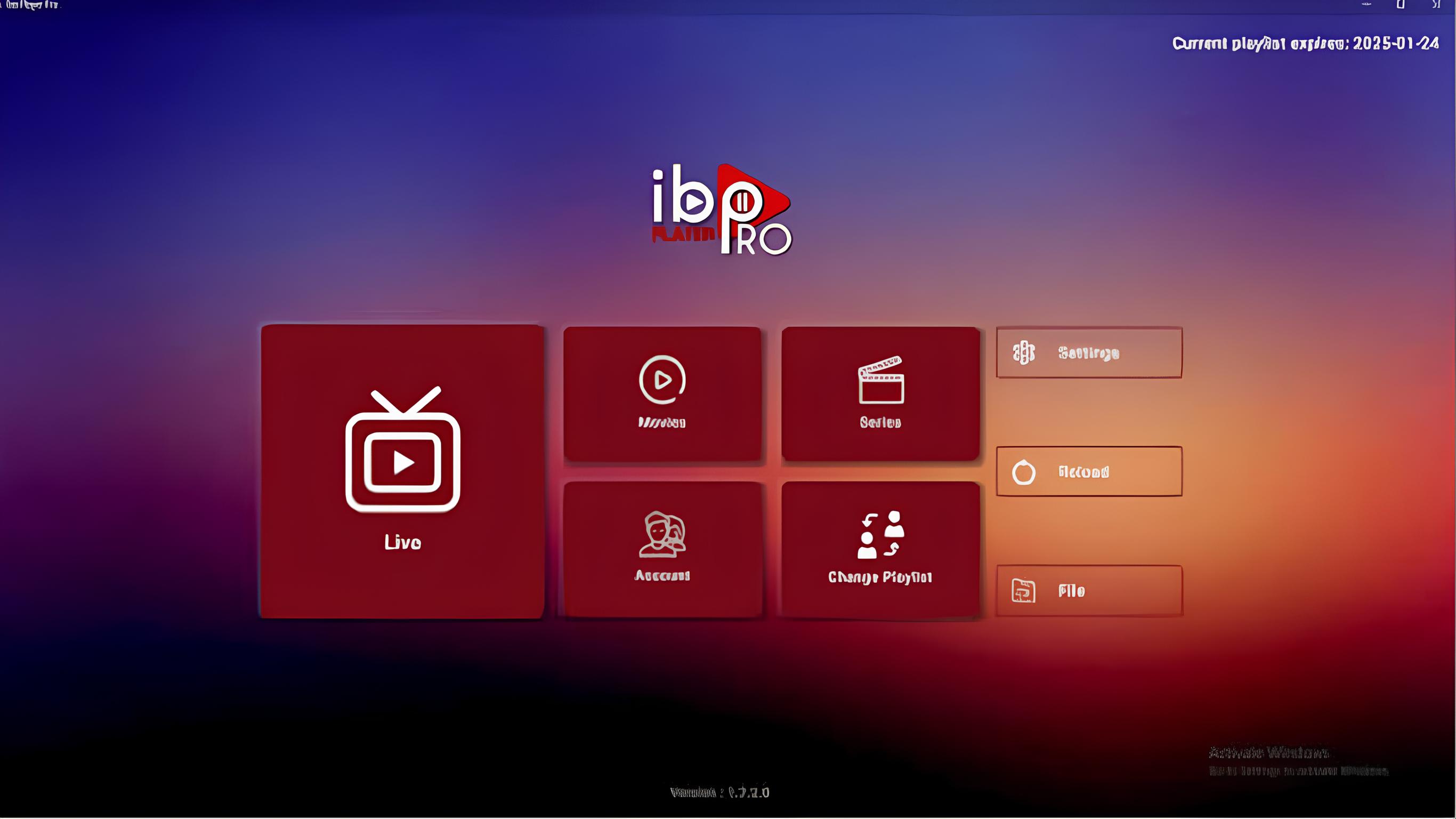
IBO Player is a popular media player that can be used to access IPTV content on compatible smart TVs and streaming devices. If you already have a valid IPTV subscription, setting it up is generally straightforward.
In this guide, we'll explain how to set up IPTV on IBO Player step by step using your subscription details from IPTVUK.my.
Whether you're setting up IBO Player for the first time or replacing an existing playlist, this guide will walk you through the process from installation to playback.
What Is IBO Player?
IBO Player is a media player application designed for compatible smart TVs and other supported devices.
The player itself does not normally provide television channels or video content. Instead, you configure it with your own legitimate playlist or subscription credentials.
This means the basic setup process involves three main stages:
- Installing IBO Player.
- Finding the device information displayed by the application.
- Entering your IPTV subscription details.
Once the information is configured correctly, you can use the player to access the content associated with your subscription.
What You Need Before Setting Up IPTV on IBO Player
Before starting the setup, make sure you have everything required.
You will generally need:
- A compatible device
- IBO Player installed on the device
- A stable internet connection
- An active IPTV subscription from IPTVUK.my
- Your IPTV login or playlist information
- A smartphone or computer if you need to enter the setup information through a web interface
Having your subscription details ready can make the setup process much faster.
How to Set Up IPTV on IBO Player
The exact menu names can vary depending on the device and version of IBO Player, but the general configuration process is similar.
Step 1: Install IBO Player
First, install IBO Player on your compatible smart TV or streaming device.
Open your device's official application store and search for:
IBO Player
Select the appropriate application and follow the on-screen installation instructions.
Once installation is complete, launch the application.
Step 2: Open IBO Player
After opening IBO Player for the first time, you should see the application's main screen.
Depending on the version you're using, the screen may display information such as:
- Device ID
- MAC address
- Application information
- Playlist or connection settings
You will need the relevant device information to connect your
Premium IPTV UK subscription.
Step 3: Find Your Device ID or MAC Address
Look carefully at the information displayed inside IBO Player.
Depending on the application version, you may see a MAC address, Device ID, or another identifier.
Write down the information exactly as displayed.
Why Is the MAC Address Important?
The MAC address can be used to associate a playlist with your particular device.
Make sure you enter it correctly. A single incorrect character can prevent the playlist from loading.
Step 4: Get Your IPTV Details From IPTVUK.my
If you have an active subscription from IPTVUK.my, use the subscription details supplied with your account.
Depending on the subscription setup, you may receive information such as:
- Username
- Password
- Server URL
- Playlist URL
- M3U URL
- Other connection information
Use the details provided for your subscription rather than manually changing or guessing any server information.
Step 5: Add Your IPTV Playlist to IBO Player
Open the appropriate playlist configuration area for IBO Player.
If the application uses a web-based playlist management page, enter the requested device information and playlist details.
Typically, you may need to provide:
MAC Address / Device ID:
Enter the identifier shown by IBO Player.
Playlist URL:
Enter the playlist URL supplied with your valid IPTVUK.my subscription.
If your subscription uses another supported authentication method, follow the setup information supplied with your account.
Step 6: Save the Playlist
After entering the required information, save or submit the configuration.
Double-check everything before submitting:
- Device ID
- MAC address
- Username, if required
- Password, if required
- Playlist URL
- Any additional required fields
Incorrect information is one of the most common reasons a playlist fails to load.
Step 7: Restart IBO Player
After saving your playlist, return to your television or streaming device.
Close IBO Player completely and reopen it.
In some cases, you may need to restart the device itself before the newly configured playlist appears.
Once the playlist has loaded, you should be able to browse the categories and content available through your active IPTVUKmy subscription.
Step 8: Test Live TV and Other Content
After the playlist appears, test several types of content.
For example, check:
- Live TV
- TV categories
- Electronic program guide, if included
- Video-on-demand content, if included
- Catch-up content, if included with your subscription
Testing multiple sections can help determine whether the setup is working correctly.
How to Refresh IPTV Channels on IBO Player
If you have updated your subscription but the changes are not appearing, try refreshing the playlist.
A basic troubleshooting process is:
- Close IBO Player.
- Check that your internet connection is working.
- Confirm that your subscription is active.
- Reopen IBO Player.
- Refresh or reload the playlist if the application provides that option.
If the updated content still does not appear, verify that the playlist information supplied by IPTVUK.my is correct.
How to Fix IPTV Not Working on IBO Player
Sometimes IBO Player may open normally while the playlist fails to load.
There are several things you can check.
Check Your Internet Connection
Start with your internet connection.
Open another application on the same device and verify that it can connect to the internet.
If other applications also have connection problems, troubleshoot your network before changing the IPTV configuration.
Check Your IPTV Subscription Details
Make sure the information entered into IBO Player exactly matches the details provided by IPTVUK.my.
Check carefully for:
- Extra spaces
- Missing characters
- Incorrect username
- Incorrect password
- Incorrect playlist URL
- Typographical errors
Copying and pasting the information can reduce typing mistakes.
Restart Your Router
A temporary network issue can sometimes affect streaming applications.
Restart your router using its normal restart procedure and allow the internet connection to return fully.
Then reopen IBO Player and test the playlist again.
Restart Your Smart TV or Streaming Device
If the application is freezing, not loading correctly, or behaving unusually, restart the device.
A fresh restart can clear temporary system issues and reload the application.
Update IBO Player
Check whether a newer version of IBO Player is available for your device.
Keeping applications updated can improve compatibility and stability.
Only install updates through trusted, official sources.
How to Reduce Buffering on IBO Player
If your
IPTV UK playlist loads but video playback repeatedly buffers, the problem may not be the player configuration.
Common causes include:
- Weak Wi-Fi
- Unstable internet
- Network congestion
- Too many devices using the connection
- Background downloads
- Outdated router equipment
- Device performance issues
Use an Ethernet Connection
If your device supports Ethernet, a wired connection can provide a more consistent connection than Wi-Fi.
This is particularly useful if your television is located far from the router.
Improve Wi-Fi Signal Strength
If Ethernet is not practical, try improving your wireless signal.
You can:
- Move the router closer to the TV.
- Remove unnecessary obstacles
- Place the router in an open location.
- Reduce heavy network activity.
- Consider a suitable mesh Wi-Fi system for larger homes.
Can You Use IBO Player on Multiple Devices?
Device support and playlist limits depend on your subscription and the particular device.
If you want to use your
IPTVUK.my subscription on multiple devices, check the terms and device allowance associated with your plan before configuring additional devices.
You may need to configure each compatible device separately.
IBO Player IPTV Setup Tips
For the smoothest setup experience, keep these tips in mind.
Use the Correct Device Information
Copy the MAC address or device identifier exactly as shown in IBO Player.
Enter the Playlist URL Carefully
A small mistake in the URL can prevent the playlist from loading.
Keep Your App Updated
Use the latest supported version available for your device.
Maintain a Stable Internet Connection
A stable connection is important for live streaming.
Restart After Configuration
If your playlist does not immediately appear, completely close and reopen IBO Player.
Keep Your Subscription Information Secure
Do not publicly share your IPTV username, password, playlist URL, or device information.
IBO Player Setup on Smart TV
The general setup process on a compatible Smart TV is straightforward.
First, install IBO Player from the appropriate application store. Launch the application and locate the device identifier shown on the screen.
Next, use the playlist configuration method supported by IBO Player and enter the relevant information supplied with your IPTVUK.my subscription.
Save the playlist, restart the application, and wait for the content to load.
Once the playlist appears, select a channel and test playback.
IBO Player Setup on Streaming Devices
The setup process may also be available on supported streaming devices.
The general process remains similar:
- Install IBO Player.
- Open the application.
- Find the device ID or MAC address.
- Add your IPTV For Streaming playlist using your IPTVUK.my subscription information.
- Save the configuration.
- Restart the application.
- Test playback.
Because menus can change between devices and application versions, always follow the instructions displayed by your particular version of IBO Player.
Frequently Asked Questions About IBO Player IPTV Setup
How do I set up IPTV on IBO Player?
Install IBO Player on a supported device, open the application, locate your device ID or MAC address, and configure the player using the valid subscription or playlist details supplied by IPTVUK.my.
Do I need an IPTV subscription for IBO Player?
Yes. IBO Player functions as a media player and requires compatible content or playlist information. For this guide, the subscription referenced is from IPTVUK.my.
Where can I find my IBO Player MAC address?
Open IBO Player and look at the application's information or setup screen. The MAC address or device identifier is normally displayed there if required by your version.
Why is my IPTV playlist not loading on IBO Player?
Check your internet connection and verify that your playlist URL and other subscription details have been entered correctly. Also confirm that your subscription is active.
Why is IPTV buffering on IBO Player?
Buffering can be caused by unstable internet, weak Wi-Fi, network congestion, background downloads, or device performance issues. Testing Ethernet can help determine whether Wi-Fi is responsible.
How do I refresh my IPTV playlist on IBO Player?
Close and reopen IBO Player and use its playlist refresh or reload option if available. If the playlist remains unchanged, verify your subscription details.
Can I use IBO Player on my Smart TV?
IBO Player availability depends on the device and operating system. Check your device's official application store for compatibility.
Is IBO Player an IPTV provider?
No. IBO Player is a media player. It requires a compatible playlist or subscription information to display content.
Conclusion
Setting up IPTV on IBO Player is generally a simple process once you have the correct subscription information.
The essential steps are to install IBO Player, locate your device information, enter the playlist details supplied by IPTVUK.my, save the configuration, restart the application, and test playback.
If something goes wrong, start with the basics: verify your subscription details, check your internet connection, restart your equipment, and make sure the application is up to date.
For the latest subscription and setup information, use the details provided by IPTVUK.my.
