Iptv Setup
Watching your favourite television channels should be smooth and enjoyable. However, buffering is one of the most common problems IPTV users experience. Constant pauses, loading circles, and interrupted playback can quickly ruin the viewing experience.
The good news is that buffering is usually caused by issues that can be identified and resolved. Whether the problem comes from your internet connection, Wi-Fi signal, device settings, or network congestion, there are several practical steps you can take to improve streaming performance.
This guide explains the most common causes of
IPTV buffering in the UK and provides effective solutions to help you enjoy stable, high-quality streaming.
What Causes IPTV Buffering?
Buffering happens when your streaming device cannot download video data quickly enough to continue playback.
Common causes include:
- Slow internet speeds
- Weak Wi-Fi signals
- Network congestion
- High streaming resolution
- Outdated IPTV applications
- Full application cache
- Router configuration issues
- Device performance limitations
- Temporary server congestion
Understanding the root cause is the first step toward fixing the problem.
Check Your Internet Speed
A reliable internet connection is essential for uninterrupted IPTV streaming.
Recommended minimum speeds:
| Streaming Quality | Recommended Speed |
| SD | 10 Mbps |
| HD | 20 Mbps |
| Full HD | 30 Mbps |
| 4K UHD | 50 Mbps or higher |
If your
internet speed drops below these levels during peak hours, buffering becomes much more likely.
Run a speed test at different times of the day to identify performance issues.
Use a Wired Ethernet Connection
Although Wi-Fi is convenient, an Ethernet connection provides greater stability.
Benefits include:
- Lower latency
- Faster data transfer
- Reduced interference
- More consistent speeds
- Fewer connection drops
Whenever possible, connect your streaming device directly to your router using an Ethernet cable.
Improve Your Wi-Fi Signal
If using Wi-Fi, signal strength plays a major role in streaming quality.
Improve wireless performance by:
- Moving closer to the router
- Placing the router in a central location
- Avoiding thick walls and metal objects
- Keeping the router elevated
- Reducing interference from other electronics
Using the 5 GHz Wi-Fi band can also provide faster speeds over shorter distances.
Restart Your Equipment
Restarting your devices can resolve temporary software and networking issues.
Restart:
- Router
- Modem
- IPTV device
- Television
- Streaming application
Leave the router powered off for about one minute before reconnecting it.
Reduce Network Congestion
Every connected device shares your available bandwidth.
Streaming quality may decrease when:
- Multiple TVs stream simultaneously
- Large downloads are running.
- Online gaming is active.
- Video calls are in progress.
- Cloud backups are being uploaded.
Limiting unnecessary internet activity while watching IPTV can significantly reduce buffering.
Keep Your IPTV Application Updated
Developers regularly release updates that improve:
- Stability
- Performance
- Security
- Compatibility
- Streaming efficiency
Always install the latest version of your
IPTV UK application.
Clear Cache Frequently
Over time, cached files may slow down application performance.
Benefits of clearing the cache include:
- Faster loading
- Improved responsiveness
- Reduced crashes
- Better playback
Clearing cache does not normally remove your playlists or login information, though it’s wise to confirm before doing so.
Select an Appropriate Streaming Quality
Higher video quality requires more bandwidth.
If buffering occurs:
- Lower the video resolution.
- Switch from 4K to HD
- Switch from HD to SD when necessary.
A stable HD stream is usually preferable to a constantly buffering 4K stream.
Optimize Your Router
Modern routers include settings that improve streaming performance.
Useful optimizations include:
- Restarting regularly
- Updating firmware
- Enabling Quality of Service (QoS) if available
- Using WPA2 or WPA3 security
- Choosing the least congested Wi-Fi channel
Proper router maintenance can make a noticeable difference.
Change DNS Settings
Some users experience improved connection performance by changing DNS servers.
Benefits may include:
- Faster domain resolution
- More stable connections
- Reduced lookup delays
Always follow your device manufacturer’s instructions before making network changes.
Check Your Streaming Device
Older devices may struggle with modern
Best IPTV UK applications.
Signs of hardware limitations include:
- Slow menus
- App crashes
- Delayed responses
- Overheating
- Freezing
Closing unused applications and freeing storage space can improve performance.
Avoid VPN Performance Issues
While VPNs can be useful in certain situations, they may reduce internet speeds depending on:
- Server distance
- Encryption overhead
- Network congestion
If buffering begins only when a VPN is enabled, test your connection without it (where appropriate and lawful) to determine whether it is contributing to the issue.
Monitor Peak-Time Internet Traffic
Internet speeds often slow during evenings when many households are online.
If buffering mainly occurs during peak hours:
- Test speeds throughout the day.
- Schedule large downloads for off-peak times.
- Reduce simultaneous internet usage during streaming.
Regular Maintenance Tips
Keeping your system maintained helps prevent future buffering.
Best practices include:
- Restart equipment weekly.
- Update apps promptly.
- Keep device storage free.
- Clear the cache periodically.
- Check internet speeds regularly.
- Replace damaged Ethernet cables.
- Position your router for optimal coverage.
Preventive maintenance often delivers the most consistent streaming experience.
Frequently Asked Questions
Why does IPTV buffer even with fast internet?
Fast download speeds alone do not guarantee smooth streaming. Wi-Fi interference, router performance, device limitations, and temporary network congestion can also affect playback.
Is Ethernet better than Wi-Fi?
Yes. Ethernet typically provides a more stable and reliable connection with lower latency, making it ideal for IPTV streaming.
Does clearing the cache improve IPTV performance?
In many cases, yes. Removing temporary files can improve app responsiveness and resolve playback issues.
Can too many connected devices cause buffering?
Yes. Multiple devices sharing the same internet connection reduce available bandwidth for streaming.
Should I stream in 4K?
Only if your internet connection and device can consistently support it. Otherwise, HD streaming often provides a smoother experience.
How often should I restart my router?
Restarting your router every one to two weeks can help maintain stable network performance.
Conclusion
Buffering can usually be resolved by improving your internet connection, optimizing your home network, maintaining your streaming device, and keeping your IPTV application updated. Small adjustments—such as using a wired connection, clearing cache, reducing network congestion, and selecting an appropriate streaming quality can make a significant difference.
By following the steps outlined in this guide, you can improve streaming stability, reduce interruptions, and enjoy a smoother IPTV viewing experience.
Iptv Setup
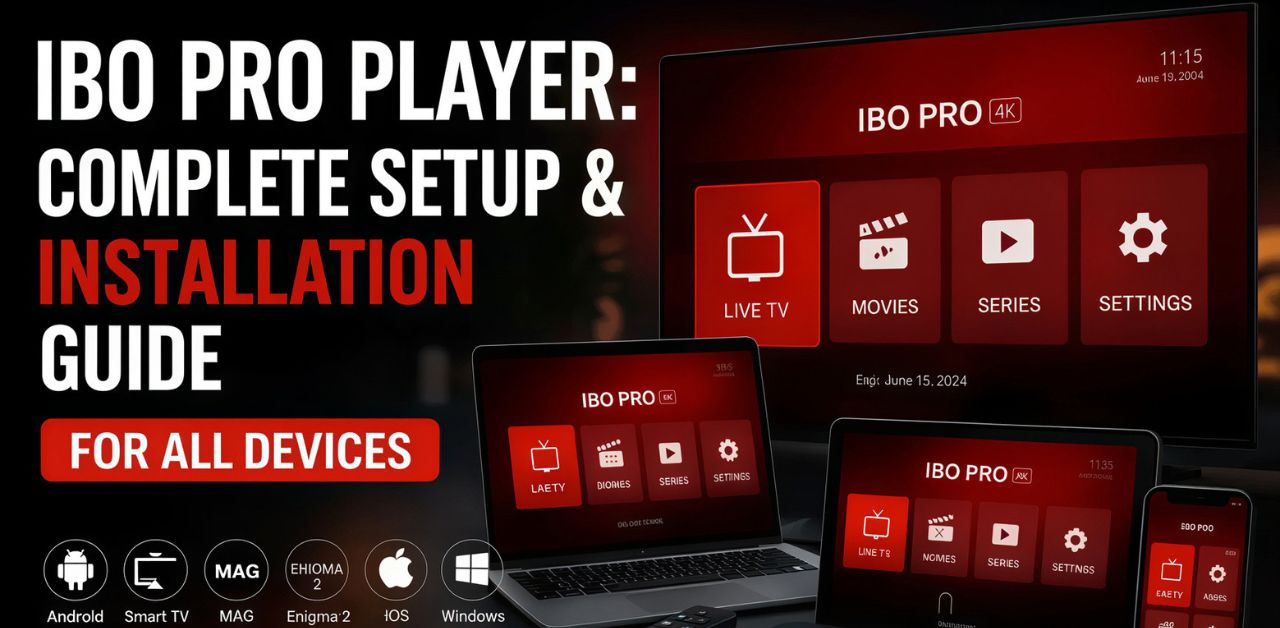
Setting up IPTV on IBO Player is quick and straightforward when you follow the correct steps. This guide explains everything you need to know for Smart TV, Android TV, Fire TV, and other compatible devices.
By the end of this tutorial, you’ll know how to install IBO Player, activate the application, upload your IPTV playlist, troubleshoot common problems, and enjoy uninterrupted streaming using your subscription from iptvuk.my.
What Is IBO Player?
IBO Player is an IPTV media player designed to stream television channels, movies, and TV series through IPTV playlists supplied by your I
PTV UKprovider.
The application does not include channels or content by default. Instead, it functions as a player that loads playlists provided by your IPTV service.
Once activated, IBO Player offers a smooth interface with features such as:
- High-quality streaming
- Easy playlist management
- Electronic Program Guide (EPG) support
- Favorite channel lists
- Multiple playlist support
- Fast navigation
- Stable performance on Smart TVs
Its clean design and reliable playback make it a popular choice for IPTV users.
Devices That Support IBO Player
IBO Player is available on many streaming devices, including:
- Samsung Smart TVs
- LG Smart TVs
- Android TV
- Google TV
- Amazon Fire TV
- Android TV Boxes
- Compatible streaming devices
Before beginning the setup process, make sure your device is connected to a stable internet connection.
What You Need Before Setup
Before configuring IBO Player, prepare the following:
- A compatible Smart TV or streaming device
- A stable internet connection
- IBO Player installed
- Your Device ID and Device Key
- IPTV playlist provided by iptvuk.my.
- Playlist URL or Xtream Codes login details
Having these ready will make the setup process much faster.
Install IBO Player
Open your device’s application store.
Search for:
IBO Player
Download and install the application.
After installation, launch the app.
When the application opens for the first time, you’ll see two important pieces of information:
Write these down because you’ll need them in the next step.
Activate IBO Player
IBO Player generally offers a trial period before requiring activation.
After the trial expires, activation is required to continue using the app.
Once activated, your playlists remain available without needing to configure everything again.
Obtain Your IPTV Subscription
To stream channels, you’ll need IPTV login information.
When you purchase your IPTV subscription from iptvuk.my, you’ll receive one of the following:
- M3U Playlist URL
- Xtream Codes API
- Username
- Password
- Server URL
Keep these details secure.
Upload Your Playlist
After receiving your IPTV credentials from
iptvuk.my, upload them to IBO Player.
Most users choose one of two methods:
Option 1: M3U Playlist
Paste your M3U playlist URL into the playlist section.
Save your configuration.
Option 2: Xtream Codes
Enter:
- Server URL
- Username
- Password
Save your information.
Restart the application if necessary.
Refresh the Playlist
After saving your playlist:
- Restart IBO Player.
- Allow it to synchronize.
- Wait for channels to load.
- Open Live TV.
- Browse Movies.
- Explore TV Series.
Depending on your internet speed, synchronization usually completes within a few moments.
Set up IPTV on TiviMate in just a few minutes with our easy step-by-step guide and start enjoying seamless streaming today.
Configure the Electronic Program Guide (EPG)
Many IPTV subscriptions include an Electronic Program Guide.
The EPG allows you to:
- View current programs
- Check upcoming shows
- Browse schedules
- Navigate channels more easily.
If your subscription includes EPG data, configure it during playlist setup or follow the instructions provided by iptvuk.my.
Optimize Video Playback
For the best viewing experience:
- Use a wired Ethernet connection whenever possible.
- Maintain internet speeds above 25 Mbps for HD streaming.
- Use 50 Mbps or higher for multiple streams.
- Close unnecessary background applications.
- Keep IBO Player updated.
- Restart your router occasionally.
These simple practices can significantly improve playback quality.
Common IBO Player Setup Problems
Even with proper setup, you may occasionally encounter issues.
Here are the most common ones.
Playlist Not Loading
Possible causes include:
- Incorrect playlist URL
- Typing errors
- Expired IPTV subscription
- Server maintenance
Double-check your login information supplied by iptvuk.my.
Buffering Issues
Buffering usually results from:
- Slow internet
- Wi-Fi interference
- Network congestion
- High device usage
Improving your internet connection often resolves the problem.
Login Errors
Verify:
- Username
- Password
- Server URL
Even a small typo can prevent successful login.
No Channels Displaying
If channels do not appear:
- Refresh the playlist.
- Restart the application.
- Check your subscription status.
- Re-enter your IPTV credentials.
EPG Not Showing
If the program guide is missing:
- Refresh playlist data.
- Reload the guide.
- Wait for synchronization.
- Verify that your subscription includes EPG support.
Best Practices for IBO Player
To maintain reliable streaming:
- Keep your app updated.
- Use a stable internet connection.
- Avoid frequently changing playlists.
- Restart the app occasionally.
- Keep your device software updated.
- Protect your login credentials.
Regular maintenance helps ensure consistent performance.
Why Choose iptvuk.my?
Selecting a reliable IPTV provider is essential for a smooth viewing experience.
At iptvuk.my, we focus on providing high-quality IPTV services with features designed to meet the needs of modern streaming users.
Benefits include:
- Extensive channel selection
- Movies and TV series
- HD and 4K streaming support
- Stable servers
- Fast activation
- Reliable customer support
- Compatibility with IBO Player
- Easy setup process
Whether you’re watching sports, entertainment, documentaries, children’s programming, or international channels, iptvuk.my provides a seamless experience across compatible devices.
Tips for Better Streaming
Improve your IPTV experience by following these recommendations:
- Connect via Ethernet whenever possible.
- Restart your router weekly.
- Keep your Smart TV updated.
- Refresh playlists regularly.
- Avoid overloading your network.
- Use high-speed broadband.
- Restart IBO Player if channels fail to load.
These simple habits help maintain optimal performance.
Frequently Asked Questions
Is IBO Player free?
IBO Player generally offers a limited trial period. Continued use typically requires activation.
Does IBO Player include channels?
No. IBO Player is a media player. Channels are supplied through your IPTV subscription from iptvuk.my.
Which devices support IBO Player?
The application supports many Smart TVs, Android TV devices, Google TV, Fire TV, and compatible streaming devices.
Can I use M3U playlists?
Yes. IBO Player supports M3U playlists provided by iptvuk.my.
Does IBO Player support Xtream Codes?
Yes. Users can configure their IPTV service using Xtream Codes credentials if provided.
Why are my channels buffering?
Buffering is commonly caused by slow internet speeds, Wi-Fi interference, or network congestion.
Can I update my playlist later?
Yes. You can refresh or replace your IPTV playlist whenever necessary.
Is EPG supported?
Yes. If your IPTV subscription includes Electronic Program Guide data, IBO Player can display TV schedules.
Conclusion
Setting up IPTV on IBO Player is a simple process when you have the correct IPTV credentials and follow each step carefully. After installing the app, activating it, and adding your playlist, you’ll be ready to enjoy live television, movies, and series on your preferred device.
For a dependable IPTV experience with straightforward setup and compatibility with IBO Player, choose iptvuk.my to get the subscription details and support you need to get started quickly. Keep your application updated, maintain a stable internet connection, and refresh your playlist as needed to enjoy smooth, reliable streaming.
Iptv Setup

Television has changed dramatically over the past decade. Traditional cable and satellite subscriptions are no longer the only way to watch live TV, movies, sports, and on-demand entertainment. Internet Protocol Television, commonly known as IPTV, has become an increasingly popular option for viewers who prefer flexible and internet-based streaming.
In the United Kingdom, interest in IPTV continues to grow as more households enjoy high-speed broadband connections and smart devices. IPTV offers the convenience of accessing television content through an internet connection rather than conventional broadcasting methods. Whether you’re watching live channels, catching up on missed programmes, or streaming on-demand content, IPTV provides a modern viewing experience that fits today’s digital lifestyle.
This guide explains everything you need to know about
IPTV UK, including how it works, its benefits, compatible devices, internet requirements, and important legal considerations.
What Is IPTV?
IPTV stands for Internet Protocol Television. Instead of transmitting television signals through satellite dishes, cable networks, or terrestrial broadcasts, IPTV delivers television content over an internet connection.
This technology allows viewers to stream live television, video-on-demand libraries, and catch-up programming using compatible devices connected to broadband internet.
Unlike conventional television services that follow fixed broadcast schedules, IPTV often provides greater flexibility, enabling users to watch content whenever they choose.
How IPTV Works in the UK
IPTV works by sending digital television data over an internet connection. When a viewer selects a channel or programme, the content is transmitted from secure servers directly to the user’s device.
The basic process includes:
- Content is stored or broadcast through internet servers.
- The viewer requests a programme or live channel.
- Data is delivered through broadband.
- The IPTV application decodes and displays the video.
- Playback begins almost instantly.
Because everything is delivered through the internet, users can access their favourite content on multiple compatible devices without relying on traditional broadcasting infrastructure.
Benefits of IPTV UK
Flexible Viewing
One of the biggest advantages of IPTV is flexibility. Viewers can watch television at home or while travelling, provided they have a stable internet connection.
On-Demand Entertainment
Many IPTV platforms include extensive libraries of movies, television series, documentaries, and catch-up content, allowing users to watch programmes whenever they choose.
Multi-Device Support
IPTV can often be accessed across multiple devices, including smart televisions, smartphones, tablets, computers, and streaming devices.
High-Quality Streaming
With a fast internet connection, IPTV can support HD, Full HD, and even 4K streaming, depending on the content and device capabilities.
Easy Access
Most IPTV applications feature intuitive interfaces that make browsing channels, searching content, and organising favourites simple for users of all ages.
Types of IPTV Services
IPTV generally falls into three categories.
Live Television
Live IPTV delivers television channels in real time over the internet, allowing viewers to watch news, sports, entertainment, and other broadcasts as they happen.
Video on Demand (VOD)
Video on Demand provides access to a library of movies and television programmes that users can watch whenever they like.
Catch-Up TV
Catch-up television enables viewers to watch recently broadcast programmes they may have missed, usually for a limited period after the original broadcast.
Is IPTV Legal in the UK?
IPTV itself is a legitimate technology and is widely used by broadcasters and streaming platforms to deliver television content over the internet.
However, the legality depends on whether the service has the proper rights and licences to distribute the content it offers. Users should choose providers that have permission to distribute copyrighted programming and comply with applicable UK copyright laws.
Before subscribing to any IPTV service, it is advisable to verify that it operates legally and respects intellectual property rights.
Features to Look For
When evaluating an IPTV service, consider features such as:
- Stable streaming performance
- High-definition picture quality
- User-friendly interface
- Electronic programme guide (EPG)
- Catch-up functionality
- Video-on-demand library
- Multiple device compatibility
- Reliable customer support
- Regular software updates
- Secure account management
These features contribute to a better overall viewing experience.
Compatible Devices
Modern IPTV platforms support a wide range of devices, including:
- Smart TVs
- Android TV devices
- Streaming boxes
- Smartphones
- Tablets
- Windows computers
- Mac computers
- Compatible web browsers
Many users appreciate the ability to begin watching on one device and continue on another.
Common IPTV Issues
Although IPTV generally offers reliable performance, occasional issues can occur.
Buffering
Buffering is often caused by slow internet speeds or network congestion.
Freezing
Temporary interruptions may result from unstable internet connections or overloaded home networks.
Picture Quality
Low-resolution playback can occur if available bandwidth decreases during streaming.
Login Problems
Incorrect account information or expired subscriptions may prevent access.
Keeping applications updated and maintaining a reliable internet connection can resolve many common problems.
Why IPTV Continues to Grow in the UK
Several factors have contributed to IPTV’s increasing popularity in the United Kingdom.
Households now enjoy faster broadband speeds, making high-quality streaming more accessible. Consumers also value the convenience of watching content on multiple devices, personalised recommendations, and flexible viewing schedules.
As internet technology continues to improve, IPTV is expected to remain an important part of the UK’s digital entertainment landscape.
Frequently Asked Questions
What does IPTV mean?
IPTV stands for Internet Protocol Television, which delivers television content over an internet connection instead of traditional broadcast methods.
Do I need a satellite dish?
No. IPTV uses broadband internet rather than satellite or cable infrastructure.
Can IPTV work on a Smart TV?
Yes. Many Smart TVs support IPTV applications or compatible streaming platforms.
Is fast internet required?
A stable broadband connection is recommended for smooth playback, especially when streaming HD or 4K content.
Can IPTV be used on multiple devices?
Many IPTV services support multiple compatible devices, though availability depends on the service’s terms.
Is IPTV replacing traditional television?
IPTV is becoming increasingly popular due to its flexibility, but traditional broadcasting methods continue to be used by many households.
Conclusion
IPTV has transformed the way many people in the United Kingdom access television and entertainment. By using internet technology, viewers can enjoy live television, on-demand content, and catch-up programming across a wide variety of devices.
Understanding how IPTV works, the benefits it offers, and the importance of choosing services that are properly licensed can help consumers make informed decisions. As broadband infrastructure continues to improve,
Best IPTV UK is likely to remain an increasingly important part of the UK’s television landscape, providing viewers with greater flexibility and convenience than ever before.
Iptv Setup
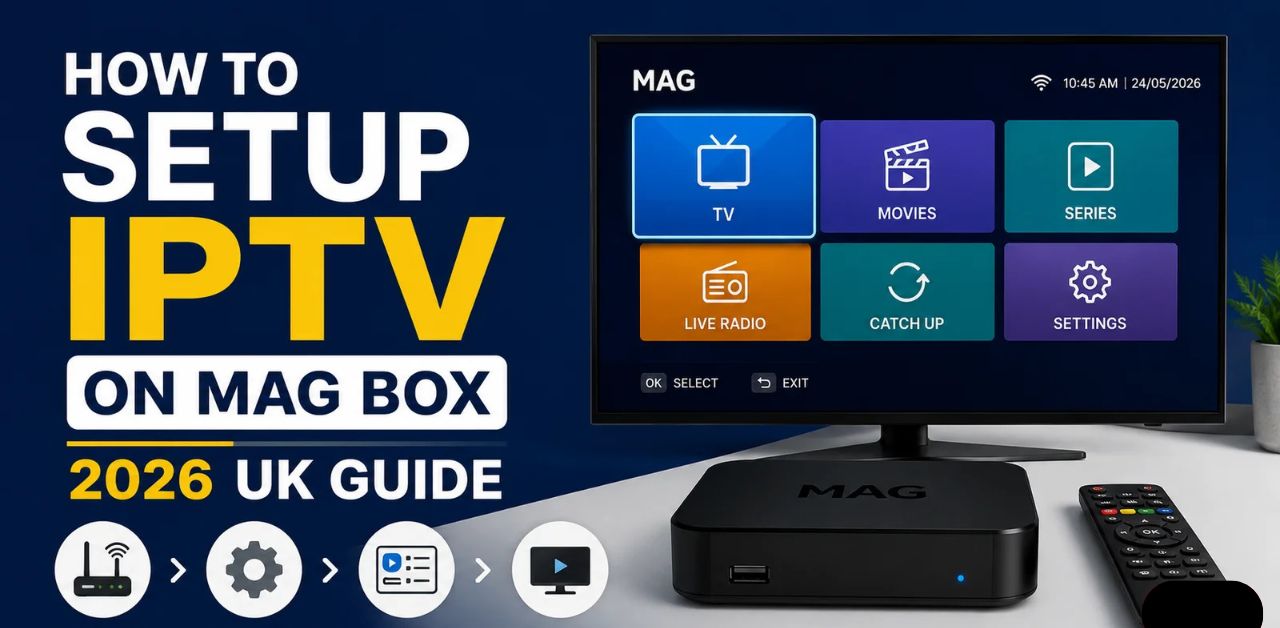
IPTV Setup for Mac Box is one of the most-searched topics among users seeking a reliable and convenient way to enjoy internet-based television on their devices. Setting up IPTV on a Mac Box is straightforward when you follow the right steps and requires only a few essential components.
Whether you’re a beginner or someone looking to improve your streaming experience, understanding the setup process can help you avoid common mistakes and enjoy stable playback. This guide explains everything from requirements and installation to optimization and troubleshooting without unnecessary technical jargon.
By the end of this article, you’ll know exactly how to complete an IPTV setup on your Mac Box while ensuring smooth performance and high-quality streaming.
What Is IPTV?
IPTV (Internet Protocol Television) is a technology that delivers television content over an internet connection instead of traditional cable or satellite systems.
Unlike conventional broadcasting, IPTV streams content directly through the internet, allowing users to access live TV, video-on-demand, catch-up content, and other multimedia services using compatible applications.
Its growing popularity comes from flexibility, convenience, and compatibility with many streaming devices.
What Is a Mac Box?
A Mac Box is a streaming device that can run IPTV-compatible applications and connect to your television via HDMI. These devices are designed to provide a simple user interface, stable performance, and support for internet-based entertainment.
Depending on the model, a Mac Box may support:
- HD streaming
- Full HD playback
- 4K resolution
- Wi-Fi connectivity
- Ethernet connection
- USB accessories
- Bluetooth devices
- External storage
Requirements Before IPTV Setup for Mac Box
Before beginning the installation, make sure you have the following:
Requirement | Purpose |
| Stable Internet Connection | Smooth streaming |
| Mac Box Device | IPTV playback |
| HDMI Cable | Connect to TV |
| Television | Display content |
| IPTV-Compatible App | Access IPTV service |
| Login Credentials | Account authentication |
| Remote Control | Device navigation |
Having these ready makes the installation process much easier.
Connect the Mac Box
Begin by connecting your Mac Box to your television using an HDMI cable.
Next:
- Connect the power adapter.
- Turn on your television.
- Select the correct HDMI input.
- Wait for the device to boot completely.
Connect to the Internet
A stable internet connection is one of the most important factors for uninterrupted UK IPTV
service streaming.
You can connect using:
Wi-Fi
- Open Network Settings.
- Select your Wi-Fi network.
- Enter the password.
- Wait until connected.
Ethernet
For better stability:
- Plug in an Ethernet cable.
- The connection is usually detected automatically.
A wired connection generally provides lower latency and fewer interruptions.
Update the Device Software
Before installing any IPTV application, check for software updates.
Updating your device offers several benefits:
- Improved security
- Better compatibility
- Performance enhancements
- Bug fixes
- Increased stability
Restart the device once the update is complete.
Install an IPTV-Compatible Application
Open the device’s application store and install a trusted IPTV-compatible player.
After installation:
- Launch the application.
- Grant necessary permissions.
- Continue to the setup screen.
Always download applications from official sources to reduce security risks.
Enter IPTV Login Details
Most IPTV applications require one of the following:
- Playlist URL
- M3U Playlist
- Xtream API details
- Portal Address
- Username
- Password
Carefully enter all required information.
Double-check spelling, as even a small mistake may prevent a successful login.
Load Channels
Once authentication is successful, the application begins downloading channel information.
Depending on the playlist size, loading may take a few moments.
After synchronization, categories usually appear, including:
- Live TV
- Movies
- TV Series
- Sports
- Entertainment
- Kids
- Documentaries
- Music
Customize Your IPTV Experience
Most IPTV applications allow customization.
Popular settings include:
- Favorite channels
- Theme selection
- Language
- Subtitle options
- Video quality
- Audio preferences
- Playback controls
- Channel sorting
These features improve daily usability.
Internet Speed Recommendations
Streaming quality depends heavily on internet speed.
Streaming Quality | Recommended Speed |
| SD | 5 Mbps |
| HD | 10 Mbps |
| Full HD | 20 Mbps |
| 4K UHD | 35 Mbps or higher |
Faster speeds help reduce buffering and improve playback consistency.
Common IPTV Setup Problems
Even with a correct installation, users may occasionally encounter issues.
Common problems include:
- Buffering
- Login errors
- Playlist not loading
- App crashes
- Audio delay
- Video freezing
- Black screen
- Connection timeout
Fortunately, most of these issues are easy to resolve.
Troubleshooting IPTV Setup for Mac Box
Restart the Device
A simple reboot can clear temporary glitches.
Check Internet Stability
Verify your network is functioning correctly and has sufficient bandwidth.
Verify Login Information
Ensure:
- Username is correct.
- Password is accurate.
- Playlist URL contains no errors.
- The portal address is complete.
Update the IPTV Application
Older versions may have compatibility issues.
Keeping the app updated improves performance and security.
Clear Application Cache
Cached files may eventually slow performance.
Clearing the cache often fixes loading problems without affecting account information.
Restart the Router
If buffering continues:
- Restart the modem.
- Restart the router.
- Wait several minutes before reconnecting.
Tips for Better Streaming Performance
Improve your streaming experience by following these best practices:
- Use a wired Ethernet connection whenever possible.
- Keep software updated.
- Close unnecessary background apps.
- Restart the device occasionally.
- Avoid downloading large files while streaming.
- Maintain a strong Wi-Fi signal strength.
- Keep sufficient free storage available.
- Regularly clear cached data.
These simple habits contribute to smoother playback.
Security Best Practices
Protect your device and personal information by following good security practices.
Use Strong Passwords
Create unique passwords for IPTV accounts and network access.
Install Updates Regularly
Security patches help protect against vulnerabilities.
Download Apps from Trusted Sources
Avoid unofficial downloads that may contain malware or modified software.
Protect Your Home Network
Secure your Wi-Fi using modern encryption and a strong password.
Advantages of IPTV Setup for Mac Box
There are many reasons users prefer this setup.
Benefits include:
- Simple installation
- User-friendly interface
- High-quality streaming
- Flexible content access
- Fast navigation
- Support for multiple resolutions
- Easy updates
- Convenient remote control operation
These features make
Best IPTV UK an attractive entertainment solution.
Maintenance Tips
Regular maintenance helps maintain smooth performance.
Recommended tasks include:
- Restart the device weekly.
- Check for updates monthly.
- Remove unused applications.
- Clear the cache periodically.
- Monitor available storage.
- Ensure stable internet connectivity.
Preventive maintenance minimizes future issues.
Frequently Asked Questions
How long does IPTV Setup for a Mac Box take?
Most users complete the setup within 10 to 20 minutes if all required information is available.
Can I use Wi-Fi instead of Ethernet?
Yes. However, a wired Ethernet connection generally offers greater stability and reduced buffering.
Why are channels not loading?
This may be caused by incorrect login information, internet connectivity issues, or an outdated application.
Does IPTV require fast internet?
Yes. A stable broadband connection is recommended, especially for HD and 4K streaming.
How often should I update the application?
Check for updates regularly to ensure compatibility, improved performance, and enhanced security.
Is restarting the device helpful?
Yes. Restarting the device can resolve temporary software issues and improve overall responsiveness.
Conclusion
Completing an IPTV Setup for a Mac Box is a straightforward process when you follow the proper steps. From connecting your device and configuring the network to installing a compatible IPTV application and optimizing performance, each stage contributes to a better streaming experience.
Keeping your software updated, maintaining a stable internet connection, and following basic troubleshooting practices will help ensure consistent performance over time. With the right setup and regular maintenance, your Mac Box can provide a reliable and enjoyable IPTV experience for everyday entertainment.
Iptv Setup
IPTV Setup for Windows: The Complete Step-by-Step Guide
Streaming television over the internet has become increasingly popular because it offers flexibility and convenience. If you want to watch live TV, video-on-demand content, or catch-up television on your computer, learning the proper IPTV setup for Windows is essential. A correctly configured Windows PC delivers smoother playback, better video quality, and fewer interruptions.
This guide explains every step required to configure IPTV on Windows without focusing on any specific service provider. Whether you're a beginner or an experienced user, you'll find practical information that helps you enjoy reliable streaming while maintaining performance and security.
Why Use Windows for IPTV Streaming?
Windows remains one of the best platforms for IPTV because it supports numerous media applications, powerful hardware, and flexible customization options.
Some major advantages include:
- Large display support
- High-performance processors
- Easy multitasking
- Wide software compatibility
- Keyboard and mouse controls
- External monitor support
- Hardware acceleration
- Recording capabilities in supported applications
Windows 10 and Windows 11 both provide an excellent environment for IPTV playback.
System Requirements for IPTV Setup for Windows
Before configuring IPTV, first confirm your computer meets the recommended specifications.
| Component | Recommended |
|---|
| Operating System | Windows 10 or Windows 11 |
| Processor | Intel Core i3 or newer |
| RAM | Minimum 4 GB (8 GB recommended) |
| Internet Speed | 20 Mbps or higher |
| Graphics | DirectX Compatible GPU |
| Storage | At least 2 GB free space |
| Network | Stable Ethernet or Wi-Fi |
Use higher specifications for smoother playback of Full HD and 4K content.
Internet Requirements
Your internet connection is a key factor in streaming quality.
Recommended speeds include:
| Video Quality | Minimum Speed |
|---|
| SD | 5 Mbps |
| HD | 10 Mbps |
| Full HD | 20 Mbps |
| 4K UHD | 40 Mbps or higher |
Use a wired Ethernet connection for more stable performance than Wi-Fi, especially for high-resolution streams.
Preparing Your Windows PC
Before installing IPTV software, prepare your system by following these essential steps.
Update Windows
Install the latest Windows updates to improve compatibility and security.
Update Graphics Drivers
Updated GPU drivers help reduce playback issues and improve hardware acceleration.
Check Internet Stability
Run a speed test and verify your connection remains stable throughout the day.
Disable Background Downloads
Large downloads can consume bandwidth and cause buffering during streaming.
Choosing an IPTV-Compatible Media Player
Several Windows media players support IPTV playlists and streaming formats.
When selecting software, look for features such as:
- Playlist support
- EPG compatibility
- Hardware acceleration
- Subtitle support
- Multiple playlist management
- Video recording (where supported)
- User-friendly interface
Choose software from trusted developers and download it only from official sources to reduce security risks.
Installing IPTV Software on Windows
Installation usually follows a straightforward process.
Step 1
Download the application from its official website.
Step 2
Run the installer with administrator privileges if required.
Step 3
Follow the installation wizard.
Step 4
Allow the application through Windows Firewall if prompted.
Step 5
Restart the application after installation.
Most IPTV applications complete installation within a few minutes.
Adding Your IPTV Playlist
Most IPTV software supports playlists in formats such as M3U or similar supported formats.
The general process includes:
- Open the IPTV application.
- Navigate to playlist settings.
- Import the playlist file or enter the playlist URL.
- Save the configuration.
- Allow the application to load channel information.
- Refresh the playlist if necessary.
Once imported successfully, channels usually appear in categorized lists.
Configuring the Electronic Program Guide (EPG)
An Electronic Program Guide displays current and upcoming television schedules.
Benefits include:
- Easier navigation
- Program scheduling
- Viewing descriptions
- Organized channel browsing
- Improved user experience
Most compatible applications allow you to import an EPG source through the settings menu.
Optimizing Video Playback
Make a few key adjustments to significantly improve streaming quality.
Enable Hardware Acceleration
Enable hardware acceleration so your graphics card handles video decoding and reduces CPU usage.
Select the Correct Decoder
Many media players allow you to choose between software and hardware decoding.
Adjust Buffer Size
Increase the playback buffer to minimize interruptions on slower internet connections.
Choose Appropriate Video Resolution
Choose a video resolution that matches your internet capability to avoid buffering.
Organizing Your IPTV Library
As playlists grow larger, organization becomes increasingly important.
Helpful tips include:
- Create favorite channels.
- Hide unwanted categories.
- Sort channels alphabetically.
- Separate sports, movies, news, and entertainment.
- Update playlists regularly.
Proper organization makes navigation much faster.
Improving Streaming Performance
Several techniques help maintain smooth playback.
Close Unnecessary Programs
Background applications consume memory and processing power.
Use Ethernet Instead of Wi-Fi
A wired connection reduces packet loss and latency.
Restart Your Router
Regular router restarts improve network performance.
Clear Application Cache
Some
affordable IPTV UK software stores temporary files that can affect performance over time.
Update Software
Software updates often include bug fixes and performance improvements.
Advanced IPTV Settings for Windows
Once your IPTV application is working properly, fine-tune the most important settings to improve the overall viewing experience.
Customize Video Output
Most IPTV players allow you to adjust video output settings. Choose the correct output mode first to improve picture quality and reduce playback issues.
Recommended settings include:
- Enable hardware acceleration if supported.
- Use automatic refresh rate switching when available.
- Match the display resolution to your monitor.
- Enable full-screen optimization for immersive viewing.
Configure Audio Settings
For the best sound quality:
- Select the correct audio output device.
- Enable surround sound if your system supports it.
- Keep audio drivers updated.
- Adjust audio synchronization if you notice delays.
Adjust Buffer Settings
Buffer settings determine how much data is stored before playback begins.
Benefits of increasing the buffer include:
- Reduced buffering
- Smoother playback
- Better handling of slower internet connections
Setting the buffer too high may increase the time it takes for streams to start.
Common IPTV Setup for Windows Problems and Solutions
Even a properly configured system can occasionally experience issues. Fortunately, most problems are easy to fix.
Buffering During Playback
Possible causes include:
- Slow internet speed
- Network congestion
- Background downloads
- Wi-Fi interference
Solutions:
- Switch to Ethernet.
- Pause other downloads.
- Restart your modem and router.
- Reduce streaming quality if necessary.
- Increase the player's buffer size.
Playlist Not Loading
Possible reasons:
- Incorrect playlist URL
- Corrupted playlist file
- Unsupported format
- Temporary network issue
Try these solutions:
- Verify the playlist information.
- Reload the playlist.
- Restart the IPTV application.
- Check your internet connection.
- Update the application to the latest version.
No Audio
If the video plays, but there is no sound:
- Check Windows volume settings.
- Verify the correct playback device is selected.
- Update audio drivers.
- Restart the application.
- Test another media file to rule out hardware issues.
Black Screen
A black screen often indicates a graphics or decoding problem.
Possible fixes include:
- Enable or disable hardware acceleration.
- Update graphics drivers.
- Restart the application.
- Restart Windows.
- Try a different video decoder if available.
Application Crashes
Frequent crashes can occur because of outdated software or system conflicts.
Solutions include:
- Install the latest application update.
- Update Windows.
- Reinstall the IPTV application.
- Close unnecessary background programs.
- Scan the computer for corrupted system files.
Security Tips for IPTV Setup for Windows
Keeping your Windows computer secure is just as important as achieving smooth playback.
Follow these best practices:
Download Software from Official Sources
Avoid downloading IPTV applications from unknown or unofficial websites.
Keep Windows Updated
Security updates help protect your computer from newly discovered vulnerabilities.
Use Antivirus Protection
A reliable antivirus program can help detect malicious software before it causes problems.
Enable Windows Firewall
Windows Firewall adds another layer of protection by monitoring incoming and outgoing network traffic.
Protect Your Login Credentials
If your IPTV application requires an account, use a strong, unique password and never share your credentials.
Best Practices for Smooth Streaming
To get the most from your IPTV setup for Windows, follow these recommendations:
- Keep Windows updated.
- Restart your computer regularly.
- Update graphics and network drivers.
- Use a stable internet connection.
- Avoid heavy downloads while streaming.
- Organize your channel list.
- Clear the application cache periodically.
- Close unused applications before streaming.
Small maintenance tasks can significantly improve long-term performance.
Legal Considerations
IPTV is a technology used to deliver television content over the internet. Its legality depends on whether the content is distributed with the proper rights and licenses.
To stay compliant:
- Use content from legitimate, authorized sources.
- Respect copyright laws in your country.
- Avoid unauthorized redistribution of copyrighted material.
- Read the terms of service of any software or content platform you use.
Frequently Asked Questions (FAQs)
Is Windows a good platform for IPTV?
Yes. Windows is a good platform for IPTV because it supports a wide range of media applications, powerful hardware, and flexible customization options.
Does IPTV work on Windows 11?
Yes. Most modern IPTV applications are fully compatible with both Windows 10 and Windows 11.
What internet speed is recommended?
For reliable Full HD streaming, a stable connection of at least 20 Mbps is recommended. For 4K content, 40 Mbps or higher is recommended for a better experience.
Why does IPTV keep buffering on Windows?
Buffering is commonly caused by slow internet speeds, Wi-Fi interference, heavy network usage, outdated software, or insufficient buffer settings within the media player.
Can I use Wi-Fi for IPTV?
Yes, but a wired Ethernet connection generally provides a more stable experience with lower latency and fewer interruptions.
How often should I update my IPTV software?
Check for updates regularly. Software updates often include security patches, compatibility improvements, and bug fixes that enhance performance.
Do I need a powerful computer for IPTV?
Not necessarily. A modern dual-core or quad-core processor with at least 4 GB of RAM can handle most HD streaming tasks. Higher specifications are beneficial for 4K playback and multitasking.
How can I improve IPTV performance on Windows?
You can improve performance by using a wired internet connection, updating Windows and drivers, enabling hardware acceleration, closing background applications, and keeping your IPTV software up to date.
Conclusion
A successful IPTV setup for Windows begins with a stable internet connection, a properly configured Windows system, and reliable IPTV-compatible software. Taking the time to optimize your computer, organize playlists, configure playback settings, and follow good security practices can greatly improve your streaming experience.
Whether you use Windows 10 or Windows 11, the platform offers the flexibility and performance needed for high-quality IPTV viewing. Regular software updates, routine system maintenance, and careful attention to playback settings help minimize common issues such as buffering, crashes, and playback errors.
By following the steps outlined in this guide, you can build a reliable IPTV setup on Windows that delivers smooth, consistent, and enjoyable streaming while maintaining your PC's security and stability.
